September 5, 2026 · 5 minute read
By Nethaven Team · Personal finance research & product team
Nethaven on TRMNL: your finances at a glance
Put Nethaven dividends, portfolio allocations, budgets, and transactions on your TRMNL display. Explore every layout and find the setup guide.
Nethaven brings dividends, portfolio allocations, budgets, and recent transactions to your TRMNL e-paper display. Choose a full screen, half, or quarter to keep the numbers you care about visible on your desk. The connection is read-only, follows your TRMNL refresh schedule, and requires an active Nethaven Pro subscription.
Sometimes you only want one answer from your finance app. How much dividend income is expected this year? How much is left in the budget? A small display on your desk can answer that question while your laptop stays on the work in front of you.
We've built four Nethaven screens for TRMNL, and tested the integration on a live device. Each screen gives a different part of your finances a place in your day. You choose what belongs there.
The previews below use fictional holdings, balances, and cost bases. The dividend example uses real securities and published payouts from Schwab, Microsoft, and Coca-Cola. These are sample portfolios, not anyone's personal financial data.
See the income your portfolio is expected to produce
The Dividends screen puts four useful numbers together: annual income, monthly average, dividend yield, and yield on cost. You can see the expected income alongside the size and purchase cost of the positions producing it.
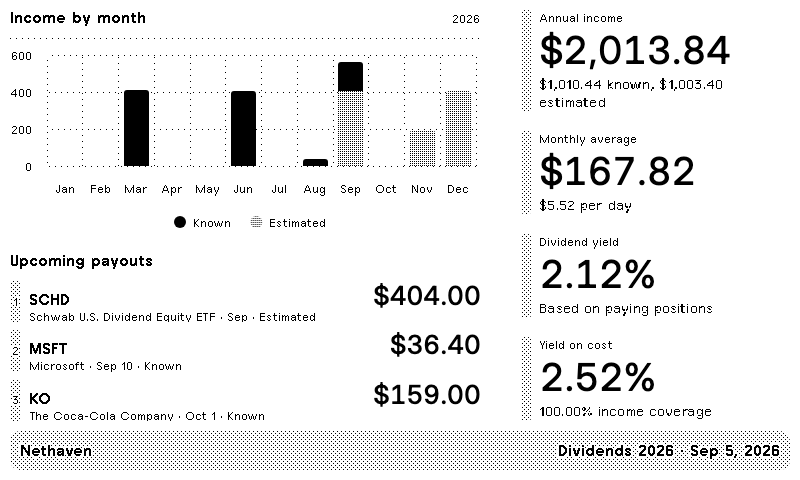
Annual income covers the calendar year and includes both known and estimated dividends. The monthly average divides that annual figure by twelve, so it is a planning reference. It doesn't mean the same amount will arrive every month.
On the full screen, the chart groups income by ex-dividend month, while the upcoming list helps you spot what's next. Dividend yield uses the value of paying positions. Yield on cost uses available cost-basis data. Our guide to tracking dividend income explains the distinctions behind those numbers.
Keep your portfolio mix in sight
The Allocations screen shows your tracked portfolio value, recent change, history, and asset mix. It makes the broader picture visible alongside the stocks or ETFs you may check most often.
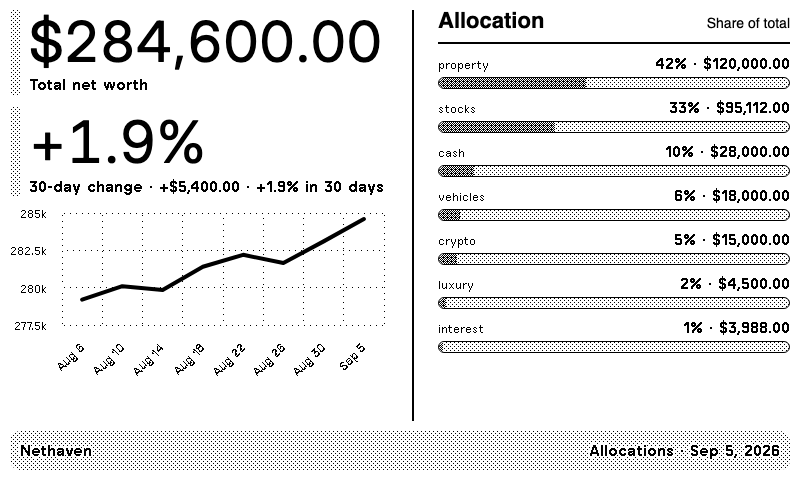
A property or cash balance can make up a large part of what you track. Seeing those categories together gives a useful starting point for your next portfolio review.
The screen currently labels its headline "Total net worth," but that figure represents tracked asset value before subtracting debts. Use it to follow your assets and their allocation; account for liabilities separately when assessing your complete net worth.
Give your budget a place on your desk
The Budgets screen shows spending against your main budget, the remaining amount, and category progress. You can check how much room is left before making another purchase.
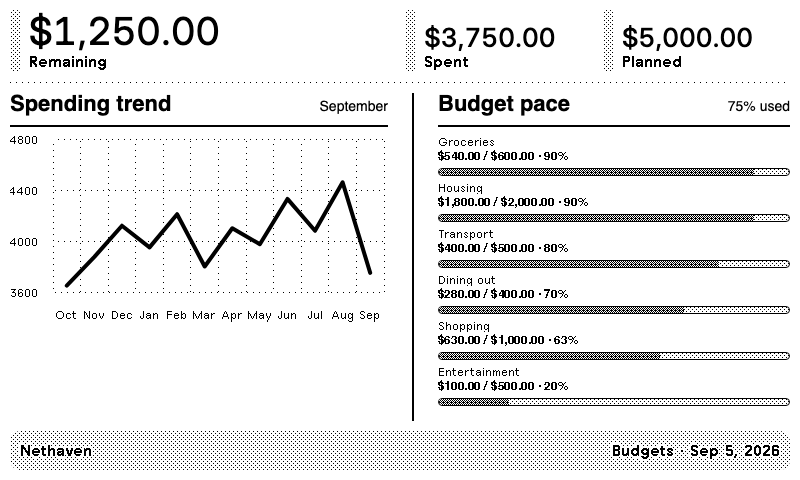
The full layout adds a spending trend and more category detail. Smaller layouts keep the remaining amount and budget progress visible, with fewer categories. Set your main budget in Nethaven's budgeting tools first, then use the display for a quick check during the month.
Notice recent spending without opening a transaction list
The Transactions screen brings recent activity from your accounts into view. Merchant names and amounts make it useful for recognizing a purchase or noticing something you want to review later.
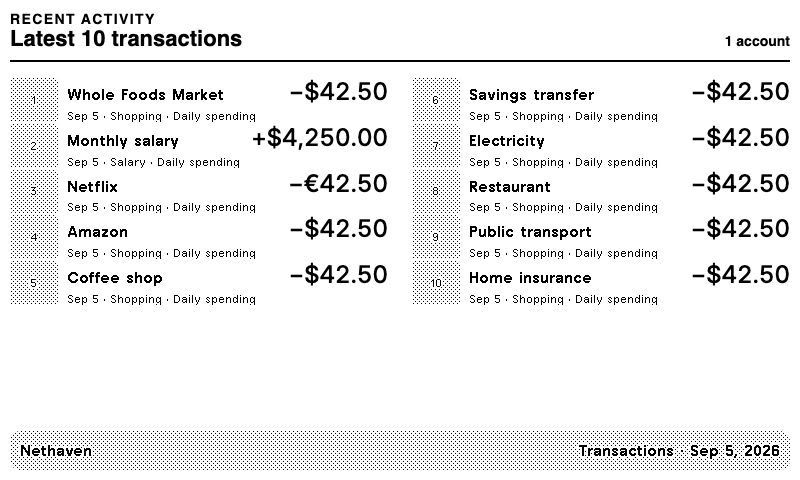
Choose between one and ten recent transactions in the display settings. The number that fits depends on the layout: up to ten on a full screen, three on a horizontal half, four on a vertical half, or one in a quarter. Open Nethaven when you want to categorize or edit a record.
Choose a full screen, half, or quarter
TRMNL's Mashups let multiple plugins share a display. Nethaven has layouts for each supported size, so you can give your finances the whole screen or place a compact view beside another plugin.
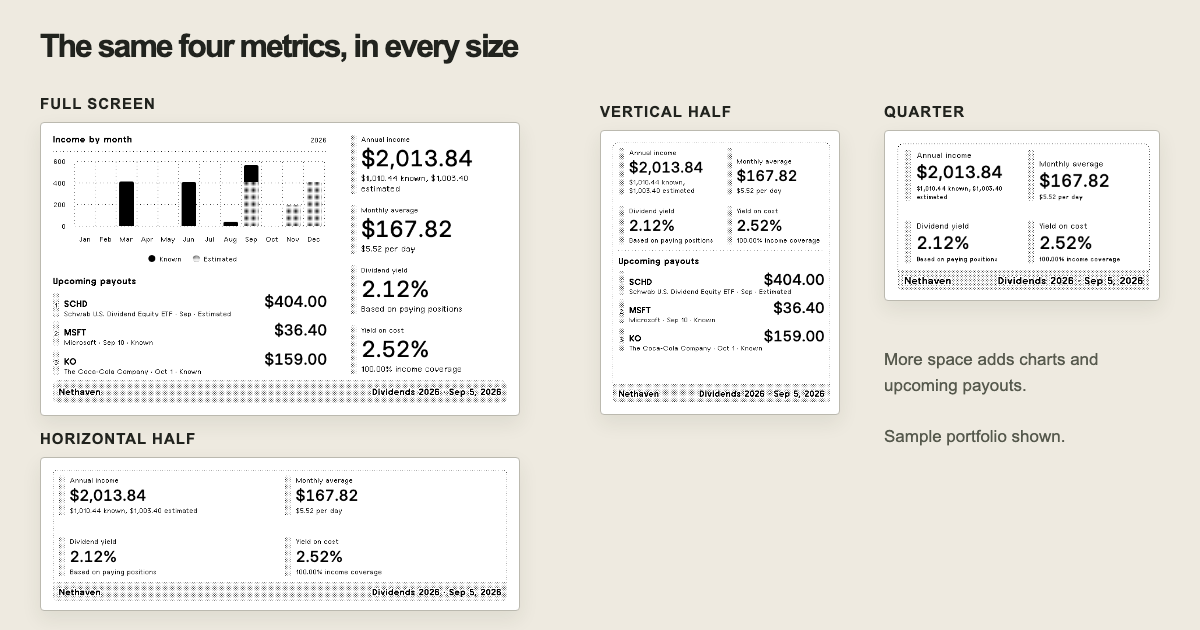
Use the full display for charts and longer lists. A half works well when you want finance information beside another part of your day. A quarter gives you a compact check. All four dividend metrics remain available in every size.
Connect your display and make it yours
The integration works on a live TRMNL device; public installation depends on the Nethaven Marketplace listing becoming available. The TRMNL setup guide covers the installation flow, display settings, refreshes, and connection recovery.
You'll need an active Nethaven Pro subscription. Once connected, open Settings > TRMNL to select your display and screen. Save your choice, then use Back to TRMNL and refresh to request an updated view.
The plugin is read-only. It can't edit records or move money. Updates follow your device and playlist's refresh schedule, so the display is a periodic view of your finances rather than a live price feed.
Choose the view you want to keep nearby, then follow the step-by-step TRMNL help guide to connect and manage your display.
Track this in Nethaven
Keep accounts, budgets, debt, goals, and subscriptions connected between reviews on iOS, Android, and web.
Frequently asked questions
Do I need Nethaven Pro to use TRMNL?
Yes. An active Nethaven Pro subscription is required to display financial data through the integration.
Can I install the public plugin now?
Public installation depends on the Nethaven listing being available in the TRMNL Marketplace. The integration has been tested on a live device.
Can I use Nethaven in a TRMNL Mashup?
Yes. The layouts support a full screen, horizontal half, vertical half, and quarter. Smaller views show fewer list items and keep the main metrics visible.
Are the dividend estimates guaranteed payments?
No. Estimated dividends are projections. The monthly average spreads expected calendar-year income over twelve months; actual payment amounts and timing can differ.
Can the display change my financial records?
No. TRMNL receives read-only data for your selected screen. Use Nethaven to edit transactions, budgets, or holdings.
Where can I find setup and troubleshooting help?
Open the TRMNL article in the Nethaven Help Center for connection steps, screen settings, refreshes, and recovery from an expired installation link.